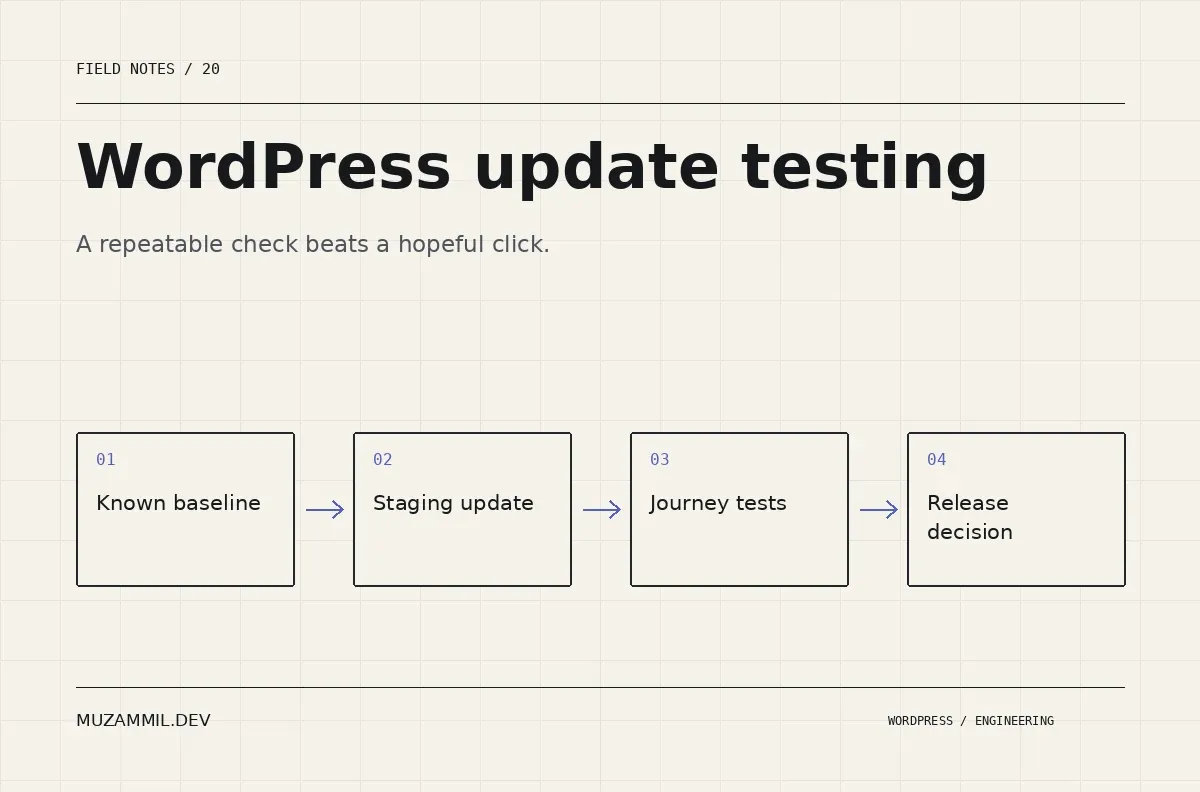
WordPress update testing should answer a better question than whether the homepage still opens. A site can render normally while its enquiry notifications fail, a variation cannot enter the cart or the editor refuses to save a reusable section.
The answer is not to postpone every update indefinitely. It is to identify the journeys that matter, establish their expected behaviour and check them through a repeatable release process.
This guide describes that process for a business site built with blocks. It also covers stores and integrations where an apparently small update can affect work beyond the visible page.
Start with a known working baseline
Record the active WordPress, theme and plugin versions before the update. Note any custom code and relevant hosting configuration. Then confirm that the important journeys work before changing anything.
This prevents an old fault from being attributed to the new release. If a notification already fails on the baseline, record that separately rather than treating the update test as proof that everything previously worked.
Keep representative screenshots and a short list of expected outcomes. A screenshot helps with visual comparison, while an outcome such as “entry saved and notification found” checks behaviour.
Also save the data needed to reproduce the test safely. Use dedicated test accounts and harmless records rather than real customer submissions.
Build WordPress update testing around business journeys
Choose a small set of high-value paths. A service site needs navigation, enquiry submission and reliable follow-up. A store adds product selection, cart, checkout and account behaviour. A publication needs search, archives and a workable editing path.
Then identify the dependencies on each journey. A form may involve a builder, spam service, mail transport and CRM. A checkout may involve payment, shipping and tax extensions.
That map helps prioritise the review when one dependency changes. A typography update and a payment-gateway update should not receive an identical checklist simply because both appear under Plugins.
Keep the scope practical. A short, repeatable set of meaningful checks is more valuable than a huge checklist nobody completes.
Read the release notes before clicking update
Check compatibility requirements, changed behaviour and any migration step described by the vendor. Verify the source of the update and the version you intend to install.
Do not assume that a patch-labelled release cannot affect behaviour. Likewise, a major version number does not tell you which parts of your site are exposed to the change.
For command-line workflows, the WP-CLI plugin-update reference documents the available update controls. Use the tooling to execute a reviewed plan, not as a substitute for deciding what belongs in the release.
Also confirm licence access for paid dependencies. A plugin that cannot receive the intended update creates a different maintenance problem from one that updates cleanly.
Use a staging copy that represents the live site
Refresh the relevant environment and configuration so the test resembles production. A staging site with different plugins, old templates and no realistic content can pass while telling you little.
At the same time, isolate external side effects. Use payment test modes, controlled recipients and safe integration destinations. Prevent the test environment from sending real customer messages or changing live business systems.
Then apply the intended update sequence. Change one dependency at a time when that helps attribution, while allowing grouped updates where the vendor’s compatibility requirements demand them.
Record the sequence. If the final state fails, you need to know which versions and migrations produced it.
Test the frontend as a logged-out visitor
Check the published page through the normal cache path. Navigation, overlays, consent controls and responsive layouts can behave differently for an administrator.
Inspect a few representative templates rather than only the homepage. Include a service page, article, archive, search result and 404 where those matter.
Use long titles and unusual content lengths in the fixture. A layout can survive the demo text and fail on a real article heading or a multi-line button.
Also verify links and status behaviour. A button that still looks correct may point to the wrong destination after a template or routing change.
Include the editor in WordPress update testing
Open a representative post and a template. Change a harmless test value, save, reopen and confirm that it persisted. Then restore the test value through the normal editing flow.
Check reusable patterns, supported overrides and any custom block controls. Watch for invalid-block warnings, disappearing styles or controls that no longer affect the frontend.
The WordPress editor asset guidance is relevant when a version change affects iframe styling or asset delivery. A working frontend does not prove that the publishing interface remains usable.
Also test with the role that maintains content. Administrator permissions can hide problems that editors encounter immediately.
Verify the form beyond its success message
Submit a safe test request through the public page. Confirm validation, stored entry, notification and any downstream integration.
Then test one important conditional branch. A general contact route can work while a service-specific notification fails.
The CRM integration guide explains why the handoff needs recovery and ownership. Keep the form entry identifier with the transport or integration evidence so the test can be traced.
Also check failure feedback. A network or validation error should help the visitor recover without losing unnecessary work. The W3C notification guidance provides a useful reference for that part of the experience.
Give store updates representative purchase paths
For a store, test the products and options that exercise your custom behaviour. Include a variable product, relevant shipping conditions and the payment methods the business actually supports.
Verify the resulting order state in a safe environment. A successful redirect alone does not prove that the order, payment event and follow-up tasks agree.
Then inspect queues and integration records where the release affects them. The order-failure diagnostic article covers several of those boundaries.
Do not use real payment transactions merely to complete a routine staging check. Follow the provider’s test process and reserve any production verification for a deliberately authorised procedure.
Automate stable assertions, keep judgement where it helps
A browser test can check that a page has the expected heading, navigation and contact route. It can also repeat a safe form interaction in a controlled environment.
Choose assertions that describe user-visible outcomes. Avoid tests that simply restate the implementation, such as checking that a CSS class exists because your code added it.
For example, verify that a menu opens, its intended links become reachable and it closes appropriately. A static screenshot comparison can then catch visual drift that the functional test does not describe.
Keep test data and environment controls explicit. Automation that creates live enquiries or triggers external actions every time it runs is not a harmless regression check.
Make the release decision explicit
Record what passed, what failed and what remains uncertain. A known minor visual issue may be acceptable; a broken enquiry path may not be.
Keep a rollback procedure and a current backup. Understand whether rollback affects only files or also database state, and how newer live records would be preserved.
After deployment, repeat a small set of production-safe checks and monitor relevant errors. Do not call WordPress update testing complete solely because the staging update succeeded.
If your maintenance process currently consists of updating everything and looking at the homepage, start by reviewing the site's three most valuable journeys. A clear baseline and a short evidence trail will make the next release easier to trust.


