WordPress LCP images can remain slow even after you convert them to WebP and reduce their file size. Compression helps the transfer. It does not explain why the browser waited several seconds before requesting the image in the first place.
Largest Contentful Paint measures when the largest qualifying visible content element renders. On many landing pages that element is a hero image, but it can also be text or another eligible element. Identify the actual element before changing your optimisation settings.
This guide follows the image from HTML discovery to rendering. The purpose is to find the expensive stage, make one targeted change and verify the result under repeatable conditions.
Identify the LCP element on the page you care about
Run a browser performance trace on a representative mobile viewport. Inspect the reported LCP element rather than assuming that the largest file in the media library is responsible.
Repeat on a few important page types. The homepage may use a hero image, while an article uses a heading or featured image. A global fix based on the homepage can be irrelevant elsewhere.
Also separate lab and field observations. A local trace helps diagnose a specific load. Field data represents real visits across a broader range of conditions. The web.dev guide to lab and field differences explains why those results may disagree.
Record the test page, viewport, network conditions and cache state. Without those details, comparing two scores can create confidence without showing which change helped.
Break WordPress LCP images into stages
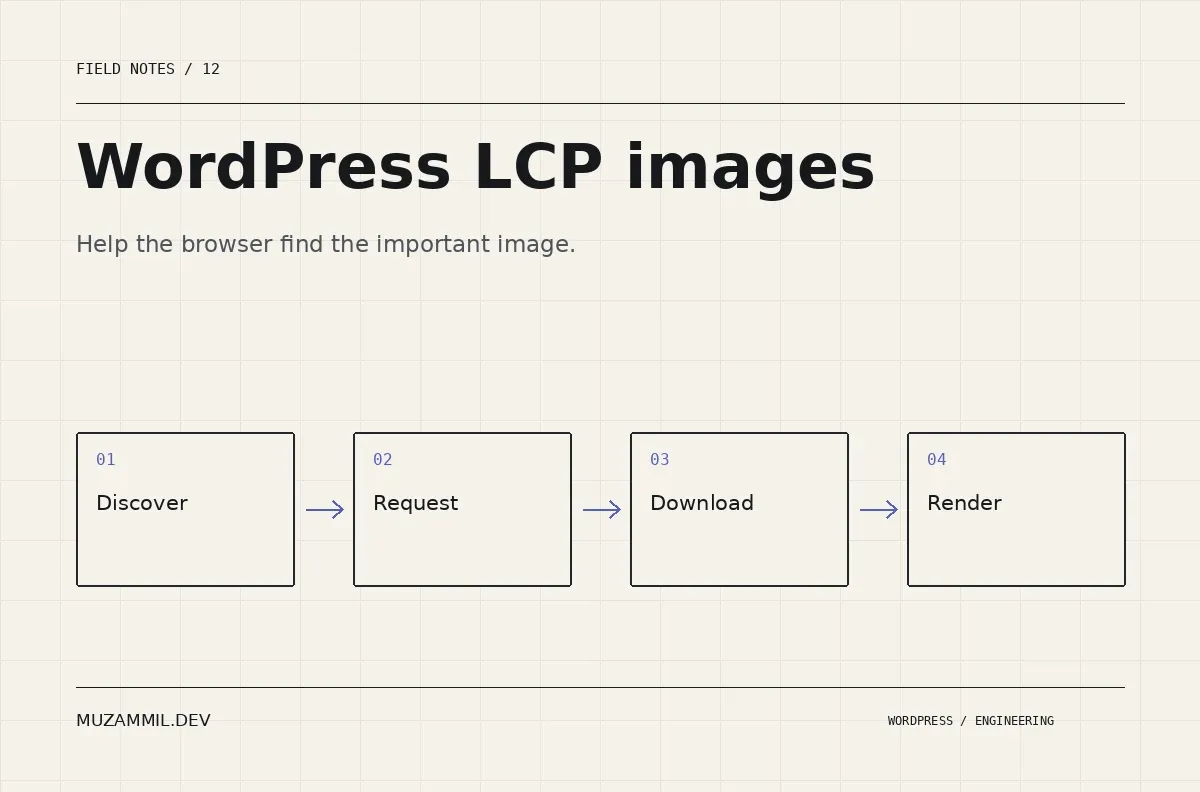
For an image-led LCP, inspect four broad stages: receiving the initial HTML, discovering and starting the image request, transferring the image, and finally rendering it.
The LCP optimisation guide explains why resource discovery and priority matter alongside file size. A CSS background or a script-inserted image can be discovered later than an image already described in the HTML.
Use the waterfall to locate the delay. If the HTML arrives late, inspect the server path. If the image request begins late, inspect discovery and loading configuration. If the request is early but finishes slowly, inspect the chosen resource and delivery. If it finishes early but renders late, inspect styles, scripts and visibility.
That sequence prevents you from applying the same compression fix to four different problems.
Check whether the important image is lazy-loaded
Lazy loading is useful for images the visitor does not need immediately. It can delay a hero image that is visible as soon as the page opens.
Inspect the actual published markup. A block setting, theme filter, CDN or optimisation plugin may change the attributes after the editor saves the page. Do not assume that the selected setting is the final output.
If the measured LCP image is lazy-loaded, adjust the responsible layer for that image. Avoid disabling lazy loading across the entire site as a first step, because below-the-fold images still benefit from deferred loading.
Then retest the same page. Check whether the image request starts earlier and whether another resource or rendering delay becomes the next bottleneck.
Use WordPress image output rather than a hard-coded original
For a custom template, use the attachment image functions where appropriate so WordPress can provide dimensions and responsive image markup. The wp_get_attachment_image reference documents the output and attributes.
The following example is for a known, above-the-fold hero attachment in a custom template. It is not a global filter for every image on the site.
<?php
/** Render the measured hero image with an explicit loading policy. */
$hero_id = (int) get_post_thumbnail_id();
if ( $hero_id ) {
    echo wp_get_attachment_image( $hero_id, 'large', false, array(
        'class'         => 'mz-service-hero',
        'loading'       => 'eager',
        'fetchpriority' => 'high',
    ) );
}
Modern WordPress already applies loading optimisations in many situations. Inspect that output before overriding it. A targeted custom-template example is useful when you know the image’s role; it is not an argument for adding high priority to every thumbnail.
Also check the selected size. A responsive layout should not force a small phone to download a huge original merely because the desktop design is wide.
Confirm the browser chooses a sensible source
Inspect the image’s current source in the browser at the target viewport. Compare its intrinsic dimensions with the displayed size and device-pixel ratio.
Then inspect srcset and sizes. A responsive source list is only helpful when the browser receives an accurate description of the image’s expected layout. The MDN responsive-images guide explains that relationship.
Look for a mismatch introduced by a plugin or custom template. For example, a full-width sizes value may be inappropriate for a card that occupies one third of a desktop grid.
Correct the markup or component configuration rather than generating dozens of extra image variants without understanding which one the browser will choose.
Be selective with preload
A preload can help a resource that the browser would otherwise discover late, such as an important background image. However, it can also waste bandwidth if it points at a file the page does not use.
Before adding one, identify the final image URL after CDN rewriting and responsive selection. A preload of the original JPEG may not help when the visible element requests a different transformed resource.
Also inspect whether the browser reports duplicate requests or an unused preload. Do not preload several carousel slides just because the first slide is important.
For WordPress LCP images, priority should follow the initial visible page, not every possible state of a component. Keep the preload only when the trace shows a useful improvement.
Investigate render delay after the image arrives
An image can finish downloading while the page still waits to show it. A hidden hero, a delayed class change or a render-blocking stylesheet can make that happen.
Inspect the element’s visibility, opacity, display and animation rules. A reveal effect that intentionally hides the hero until a script runs may delay meaningful content even when the file is already available.
Then inspect long main-thread tasks and stylesheet dependencies. Do not assume the network is responsible simply because the LCP element is an image.
Keep decorative motion away from the critical rendering path where possible. The page can feel considered without making the visitor wait for the main message to become visible.
Test WordPress LCP images with the real cache path
Use the published page as an anonymous visitor. A logged-in preview may bypass caching, use different assets or include admin resources.
Measure both the first request after a purge and a later cached request when those cases matter. If the first request is slow because the server generates transformed images, record that separately from a steady-state visit.
Also inspect the CDN response and delivery region. A local development result cannot describe the experience of your intended audience in another country. Use representative test locations where your measurement tool supports them.
Keep a small result log with the exact change. “Hero image no longer lazy-loaded” is useful. “Enabled speed mode” is difficult to investigate later.
Know when the problem belongs elsewhere
If the HTML response is the main delay, review database work, remote calls and caching. If interaction feels slow after the page loads, investigate responsiveness rather than treating LCP as the only performance measure.
The third-party scripts article covers another part of that investigation. For stores, the WooCommerce performance framework helps order the server-side questions.
If you want a review, send the page and a recent performance trace. The useful evidence is where the browser spent the time. Another compressed copy of the same image may be the answer, but it should be the result of the investigation rather than the starting assumption.


