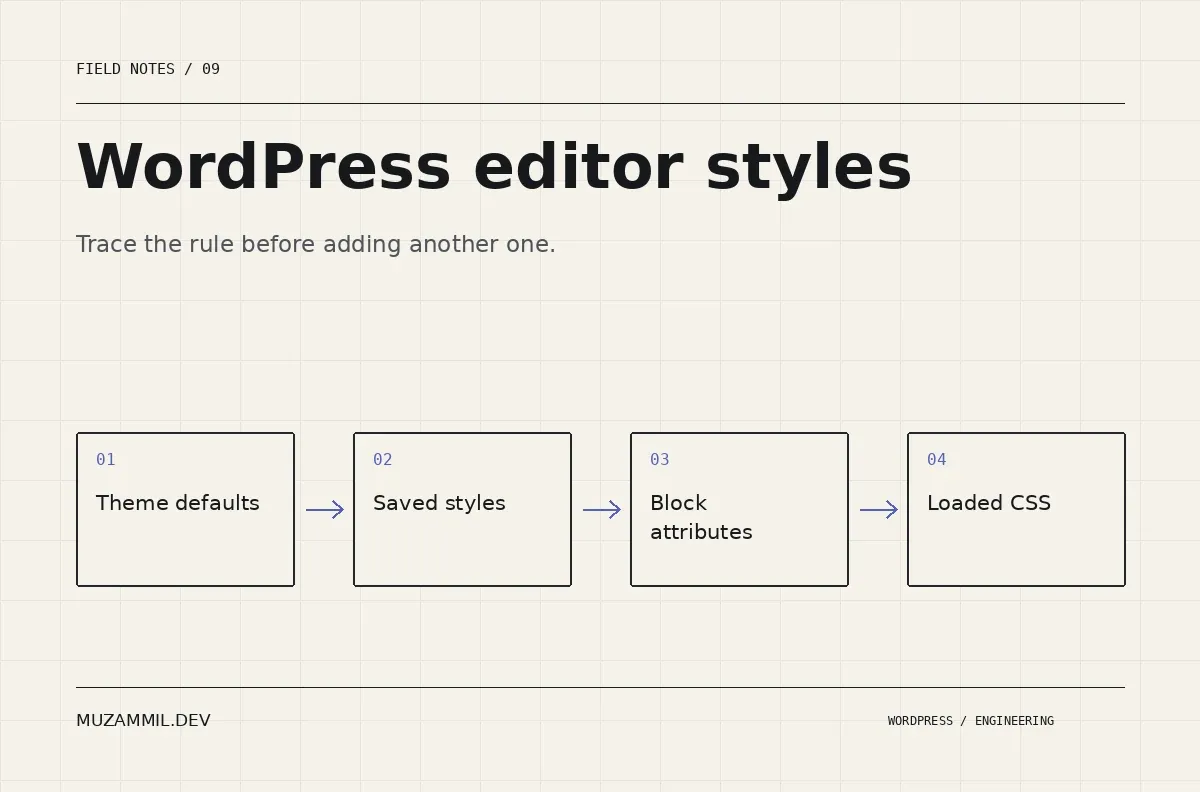
WordPress editor styles can look correct in the canvas while the published page uses different spacing, fonts or colours. The temptation is to add another CSS rule until the two views resemble each other. That often makes the next mismatch harder to diagnose.
The editor and frontend can receive styles through different routes. They can also render different wrappers and inherit different saved settings. A visual disagreement therefore needs a source trace, not a competition to write the most specific selector.
This guide follows one component from its saved attributes to the CSS the browser applies. Use a staging copy and a repeatable test page. The aim is to fix the responsible layer while preserving intentional editor and client choices.
Describe the mismatch precisely
Choose one block with a visible problem. Record the property that differs: text colour, font family, width, margin or another specific value.
Then compare the same content at the same approximate width. A narrow editor canvas and a wide browser window can legitimately produce different line breaks. Likewise, a mobile preview can activate rules that your desktop comparison does not use.
Capture the block’s saved settings before changing anything. Does it inherit the site’s font, select a preset or contain a custom value? Those choices create different dependencies even when the current result looks identical.
Also check whether the editor is displaying the page inside its full template. A standalone post canvas and a frontend page with a sidebar do not share the same available space.
Trace WordPress editor styles through the configuration layers
Start with the theme’s theme.json file. Next, inspect any child-theme settings and saved global styles. Finally, inspect the block’s own attributes and the stylesheets that target its markup.
The global settings and styles handbook explains that user configuration can override theme-file defaults. Therefore, changing a file value may not change a site with an existing saved override.
Do not reset all global styles as a first debugging step. That can remove approved work unrelated to the problem. Instead, compare the existing site with a clean development installation and identify the smallest override responsible for the difference.
Write down what you find. A short note such as “Button colour comes from a saved custom value” is more useful than “CSS was broken”.
Inspect the computed rule on the frontend
Use the browser’s developer tools to select the affected element. Find the computed value, then trace the winning declaration and the rules it overrides.
Check whether the value comes from a generated preset class, an inline style, a theme stylesheet or a plugin. A broad rule such as .content p { color: #222; } can override an inherited light colour inside a dark section.
The fix might be an explicit block colour, a better-scoped theme rule or removal of an obsolete declaration. Adding !important everywhere can conceal the cause while breaking the next design variation.
Also inspect CSS custom properties. If a rule references a preset variable that no longer exists, the problem may be a renamed token rather than specificity. Restore compatibility or migrate the stored references deliberately.
Check the editor’s content iframe
The asset-enqueueing guide distinguishes assets for the editor interface from assets for the edited content. The Site Editor uses an iframe, and current WordPress versions also iframe the post editor.
A stylesheet loaded into the surrounding admin interface does not necessarily style the document inside the canvas. This is a common reason a frontend component looks finished while its editor version looks unstyled.
First decide what the asset is for. Inspector controls belong to the editor interface. A card’s visual styles belong to the content. Custom block assets should use the block’s documented metadata fields where appropriate.
Avoid solving an iframe problem by injecting CSS through a Custom HTML block in every post. That spreads a theme responsibility into content and makes the dependency difficult to maintain.
Load a component stylesheet through a supported route
For a theme’s per-block styling, wp_enqueue_block_style() can load the relevant CSS in the editor and frontend. The following example registers a small stylesheet for the core Button block.
<?php
/** Share this component stylesheet between canvas and frontend. */
add_action( 'init', function () {
    $file = get_theme_file_path( 'assets/css/button.css' );
    if ( ! file_exists( $file ) ) {
        return;
    }
    wp_enqueue_block_style( 'core/button', array(
        'handle' => 'mz-button-style',
        'src'    => get_theme_file_uri( 'assets/css/button.css' ),
        'path'   => $file,
        'ver'    => (string) filemtime( $file ),
    ) );
} );
Adapt the file path and handle to your theme. This is a loading example, not a replacement for the theme’s full asset strategy. The function reference documents its arguments.
Keep the stylesheet focused. For example, style a named button variation instead of every link in the document. If a design choice belongs to theme.json, keep it there and let the component stylesheet handle only the missing treatment.
Compare markup as well as CSS
Some blocks render extra editor wrappers. Dynamic blocks may also use a preview that differs from the final server output. A selector that depends on an exact chain of parent elements can therefore be fragile.
Prefer a stable component class or supported block selector. Avoid targeting generated IDs or incidental editor wrappers as if they were part of the public API.
Then inspect dimensions. A parent Group may constrain the editor version, while the frontend template uses a different layout. Follow the nesting in List View and inspect which container sets the width.
The layout architecture guide distinguishes flow, constrained, flex and grid layouts. Choosing the correct container can solve a width mismatch without another override.
Rule out stale assets carefully
Caching can make a fixed stylesheet appear unchanged. However, it should not become the default explanation for every disagreement.
First confirm that the expected CSS file is requested. Then inspect its response and version. If the browser receives the new rule but another declaration wins, purging more caches will not solve the cascade.
After the source is correct, clear the relevant page, asset or optimisation cache through the normal workflow. Test as a logged-out visitor too, because an administrator may bypass a cache layer.
Also check combined or delayed assets if the site uses optimisation features. The clean development page and the optimised production page may load CSS differently. Change one setting at a time so you can identify the effect.
Make a small WordPress editor styles fixture
Keep a development page containing the components most likely to drift: headings, paragraphs, buttons, images, tables, code and a dark section. Include long labels and unusual content lengths.
Compare that page in the canvas and the published preview after theme or block-plugin changes. Record the viewport and active plugin versions. This gives the team a repeatable check rather than a memory of what the page used to look like.
Then reopen the editor after saving. Confirm that the settings persisted and that the page did not silently revert to an older attribute value. A persistence problem needs investigation at the save path, not another frontend rule.
Fix the layer that owns the decision
WordPress editor styles become easier to maintain when each decision has a clear home. Theme tokens define shared values. Blocks store intentional local choices. Component stylesheets handle the missing details. Asset registration delivers those rules to the correct document.
For permissions and reusable section ownership, see the block-theme governance guide. If one component still disagrees between views, send its editor and frontend examples with the property that differs.
That precise starting point usually saves more time than a full-page CSS rewrite.


