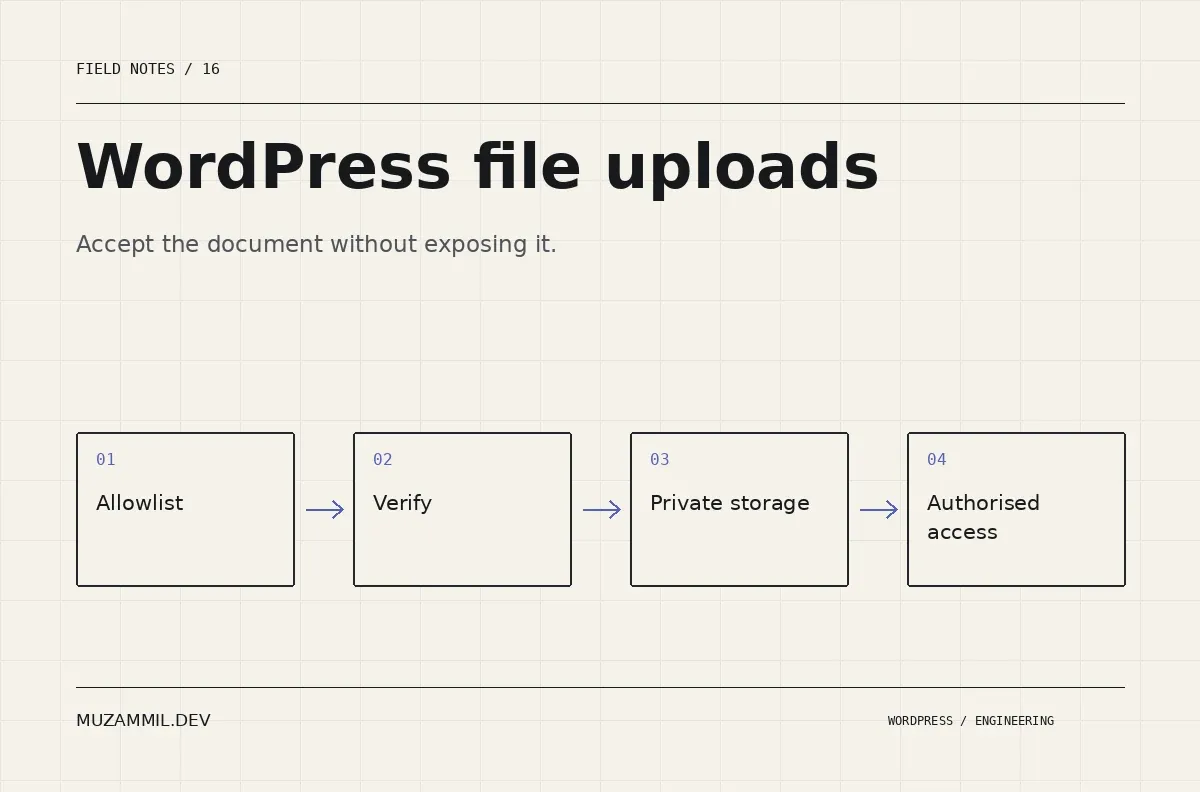
WordPress file uploads often begin as a small request: “Can the client attach a document?” The form builder adds a file field, and the page looks finished. Yet the upload creates a second workflow behind the enquiry: receiving, storing, viewing and eventually deleting someone else’s file.
That workflow deserves its own design. A file can be the wrong type, too large, malicious or simply more sensitive than the business intended to collect. A public media URL can also expose a document to anyone who obtains the link.
This guide explains the decisions to make before accepting documents through a form. It is a technical planning checklist, not a claim that a short code snippet can make arbitrary uploads safe.
Ask whether the first enquiry needs a file
For many service businesses, a public URL and a short description are enough to begin. Asking for a full project archive, customer export or identity document at the first contact adds risk and friction without necessarily helping qualification.
Define the smallest useful attachment. A screenshot of a layout problem may be appropriate. A database backup containing customer records usually needs a separate, controlled transfer process.
Then write a clear instruction beside the field. Say which formats are accepted, the size limit and what the visitor should avoid uploading. Do not bury those details in a generic privacy policy link.
Also decide whether the field is optional. If the business can start the conversation without the attachment, do not make a failed upload block an otherwise useful enquiry.
Set explicit limits for WordPress file uploads
Choose allowed extensions and a maximum size according to the business task. Avoid accepting every format merely because the form plugin makes it possible.
The OWASP upload guidance recommends layered controls rather than trusting one signal such as a filename or a browser-supplied content type.
For a specific plugin, use its current validation controls and documentation. For example, Contact Form 7 documents explicit file-type and size options. Configuring that field is separate from configuring how the attachment is handled after submission.
Keep the limits consistent across the application, web server and hosting environment. If the page advertises a larger upload than the server accepts, the visitor may receive an opaque failure before the form can display its own helpful message.
Treat validation as several questions
An upload validator needs to consider the transfer status, actual size, allowed name extension and file-type evidence. It may also need malware scanning or content disarm according to the document workflow.
Do not trust the file’s original name as a safe storage path. Generate an internal identifier and keep a controlled mapping if the business needs to show the original name later.
WordPress provides wp_check_filetype_and_ext, but its documented behaviour should not be mistaken for a universal malware or document-content validator. The function can fall back to extension information when it cannot determine the real type.
The following is an illustrative policy, not a complete uploader or a replacement for a plugin’s validated server-side implementation.
Document-request policy
  allowed business formats: PDF only
  maximum accepted size: 5 MB
  original filename: never used as the storage path
  upload result: checked before processing
  content: quarantined until the required checks complete
  storage: private, outside ordinary public media delivery
  download: authorised request, not a permanent public link
  retention: removed after the documented business period
Those choices belong to the application’s requirements. Your actual formats, scanning route and retention period should follow the information being requested.
Decide where the file will live
The normal WordPress media workflow is useful for public site assets. It is not automatically suitable for private client documents.
Choose a storage route that matches the access requirement. That might be protected application storage or a private object-storage bucket with controlled retrieval. Verify the actual configuration rather than assuming that an obscure URL is private.
Also inspect temporary files. A plugin may receive an upload in one location, attach it to a message and then remove or retain it according to its own process. Read and test that lifecycle.
Keep a simple storage map: temporary receipt, validation or quarantine, approved storage, download and deletion. If nobody can describe where the file exists at each stage, the workflow is not ready for sensitive documents.
Authorise every private download
A download route should verify who is requesting the file and whether they are allowed to access that specific record. Checking that someone is logged in is not enough when several clients or teams share the application.
Do not expose the underlying storage path in a way that bypasses those checks. If the design uses temporary signed links, define their lifetime and scope, then test expiry and reuse behaviour.
For custom WordPress endpoints, the REST permissions guidance explains where permission callbacks fit. That is one part of the access design, not the whole file-delivery implementation.
Then test with two different accounts. The owner should reach the intended file; the other account should not. Also test a logged-out request and a guessed or modified identifier.
Keep attachments out of unnecessary copies
Emailing every uploaded document to several inboxes creates more copies to secure and later remove. It can also make delivery less reliable when files exceed a provider’s limits.
Where appropriate, send a notification that a document is available through a protected workflow instead of attaching the document itself. The person handling the request can then access the controlled record.
If email attachment delivery is required, document that route and its retention implications. The form-email debugging guide's broader integration context is relevant when notifications and business records must stay traceable.
Avoid logging the document contents or a permanent private-download URL in general error logs. Diagnostics should help identify the event without creating another uncontrolled copy of the file.
Make errors useful to the visitor
An upload failure should explain what the visitor can do next. “Upload failed” is less useful than “Choose a PDF smaller than 5 MB” when that is the actual constraint.
Keep the rest of the enquiry intact where the form supports it. Losing several completed fields because one attachment failed makes the process unnecessarily frustrating.
Also test keyboard and screen-reader feedback. The W3C notification guidance covers how forms should communicate errors and successful actions.
Do not present a success message until the server has reached the state you intend to confirm. If scanning continues asynchronously, explain that the upload was received and is being checked rather than implying immediate acceptance.
Test the lifecycle of WordPress file uploads
Use harmless test files to cover the allowed format, an oversized file, an unsupported extension and a failed or interrupted transfer. Test a filename with spaces and punctuation too.
Then verify each storage stage and the final access rules. Check what happens if a scan fails, a notification fails or an administrator rejects the request.
Finally, test deletion. Remove the test record through the intended process and verify what happens to its files, temporary copies and backups according to the documented policy. A disappearing entry in the admin does not prove that every stored copy vanished.
Keep this test set for relevant plugin, hosting or storage changes. Uploads cross several system boundaries, so a page-level visual check is insufficient.
Give the workflow an owner
Someone needs to review rejected files, maintain the scanning or storage service and respond when a legitimate client cannot upload. Include those tasks in the handover rather than treating the field as a finished feature forever.
For the wider security-review approach, see taking over WordPress security. If your form currently asks for project archives or private documents, describe the collection and access requirements before sending any real files.
WordPress file uploads should make the business process easier without turning private documents into ordinary public assets. Design the file’s whole journey, including the point where the business no longer needs it.


