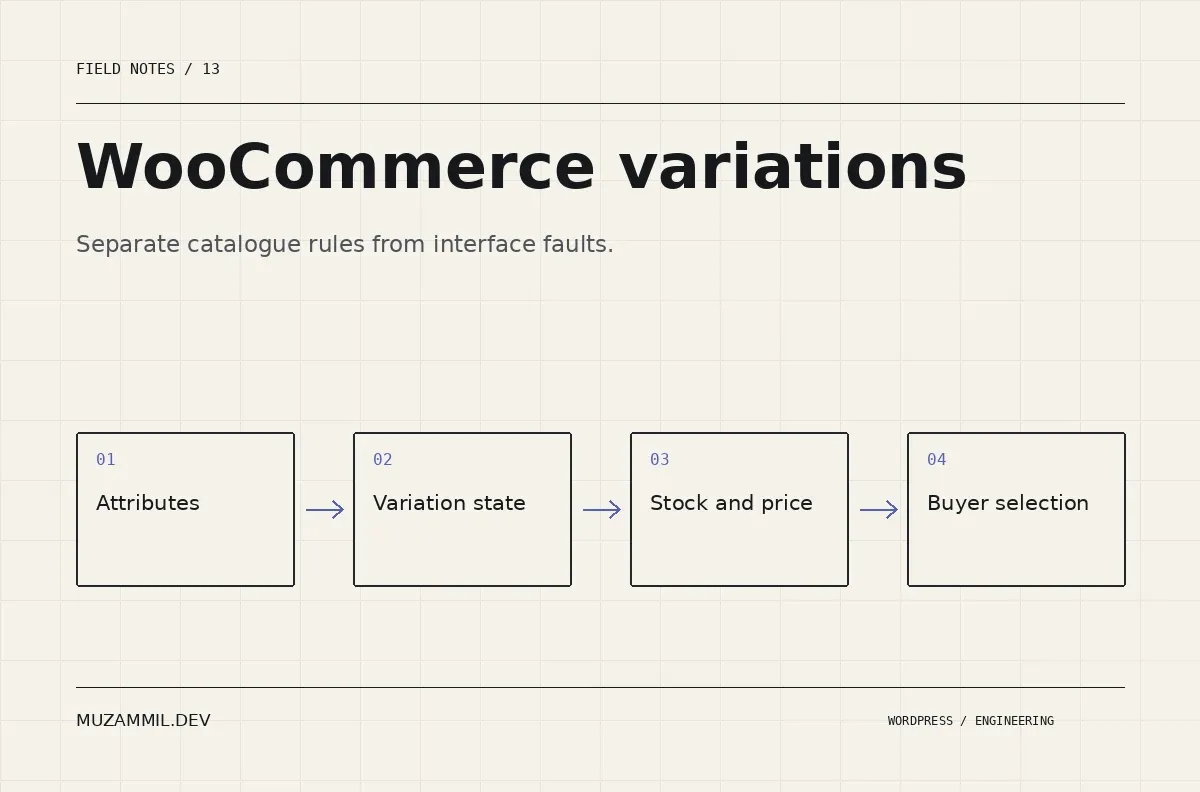
WooCommerce variations can disappear from the buying journey for reasons that have nothing to do with the colour swatch plugin. A missing price, a stock rule or an attribute combination can make the interface look broken while it is following the catalogue data it received.
The reverse is possible too. The product data can be correct while a script conflict prevents the selected option from reaching the cart. Replacing the selector before distinguishing those cases can add another dependency without fixing the cause.
This guide follows a variable product from its attributes to a completed cart action. Use a staging copy and a safe test product. Do not bulk-regenerate live variations while you are still trying to understand the current state.
Write down the exact missing combination
Start with a specific example: size Medium, colour Navy, expected price and expected stock state. “Some options are missing” is too broad to test reliably.
Record what the shopper sees and what the product editor shows. Does the choice disappear, remain disabled, show an unavailable message or fail after Add to cart? Those are different symptoms.
Then identify whether the problem affects one product, one attribute family or the whole store. A single-product problem points you toward data and configuration. A site-wide failure after an update may suggest a shared script, template or plugin issue.
Also note the role and region used during the test if pricing or availability depends on them. An administrator preview may not match an anonymous customer’s experience.
Check the attribute model before WooCommerce variations
The WooCommerce variable-product documentation explains how attributes define the available options and how individual variations carry their own details.
First confirm that the expected attributes exist and are used for variations. Then check their values carefully. Similar labels can hide different underlying terms, especially after imports or manual edits.
For example, “Large” and “L” may mean the same thing to the merchandising team but represent different configured choices. A selector cannot safely guess that relationship.
Decide whether the catalogue should use global attributes or product-specific attributes for the relevant use case. Consistency matters when filters, imports and integrations depend on those values. Document the chosen model before cleaning large amounts of data.
Inspect the individual variation, not only the parent product
Open the exact variation that should represent the missing combination. Check that it is enabled and has the required price and availability settings.
Then inspect stock management at the correct level. The parent product and its variations can have different stock-related configuration. Read the actual settings rather than assuming that a parent-level quantity proves every variation is purchasable.
Also check sale dates, backorder behaviour and any extension that changes availability. A scheduled price or a role-based rule can make a product behave differently at another time or under another account.
The product-management guide is useful for the broader product-type context. Keep a record of the original values before changing them during diagnosis.
Do not generate every possible combination automatically
A product with several attributes can create a large number of possible combinations. Not every theoretical combination corresponds to something the business sells.
Before generating WooCommerce variations, ask the merchandising team which combinations exist. A shirt might come in five sizes and four colours, but one colour may be available in only two sizes.
Generating everything can create empty or misleading records that someone must maintain later. It can also make imports and stock updates harder to reconcile.
Use a small sample product to prove the structure first. Then plan any bulk operation with a backup, an expected record count and a way to compare the result. A button that creates variations quickly does not validate the business catalogue.
Separate catalogue behaviour from interface behaviour
Once the exact variation is valid, test it with the standard product interface on a staging copy. Temporarily remove the optional selector enhancement there, following the plugin’s documented process.
If the standard interface works, investigate the enhancement’s configuration, templates and scripts. If the standard interface also fails, continue tracing product data and shared store behaviour.
Do not perform a broad plugin-disable experiment on the live store during trading. Use a copy where you can change one dependency at a time without affecting customers.
Also inspect the browser console and network requests. A JavaScript error before the variation handler runs can make the selector seem unresponsive even though the product data is correct.
Follow the selected variation into the cart
A visible option is not the final test. Select the intended combination, add it to the cart and inspect the resulting line item.
Confirm the variation identity, price, tax treatment where relevant and displayed attributes. Then change the quantity and verify the stock-related behaviour you expect.
Repeat with a different variation of the same product. If the cart keeps the previous selection, inspect stale state, custom templates and caching rather than editing the catalogue to compensate.
For more complex storefronts, the WooCommerce Store API overview explains the public customer-facing API’s role. A custom interface still needs to send and handle the correct product selection.
Check the cache boundary carefully
Cached product pages can make recent changes appear inconsistent. However, caching should be investigated with evidence rather than blamed automatically.
Compare the saved product values with a logged-out response after the normal purge process. Inspect whether a CDN, page cache or custom application cache serves older product information.
Then distinguish public product content from customer-specific state. A cart, session or personalised price should not be handled like an ordinary static article.
If the issue appears only after a cache warms, record that sequence. “Works immediately after purge, fails on the next anonymous visit” is a much more useful bug report than “the cache is strange”.
Audit imports and integrations that write product data
If the same problem returns after you fix it manually, inspect the process that updates the catalogue. An import, ERP connection or custom job may overwrite the values later.
Map the authoritative fields. Which system owns price? Which owns stock? Which creates attribute terms? Then compare one incoming record with the resulting product and variation records.
Avoid allowing two systems to maintain the same field without an explicit conflict rule. Otherwise, a correct manual edit can disappear during the next sync.
The API-integration reliability article covers the wider issue of tracking updates and failures. For variation data, include the product and variation identifiers in your diagnostic records so you can follow the same item through each system.
Build a regression set for WooCommerce variations
Keep a few representative products on staging: a simple two-option product, a product with unavailable combinations, one with variation-level stock and one with any pricing extension you rely on.
After relevant updates, repeat the same selection and cart tests. Include mobile, keyboard use and a fresh anonymous session. Check that the selected state remains clear and that disabled options are explained rather than silently confusing the buyer.
Also test a long attribute label. A polished swatch layout can break when the catalogue contains a value longer than the demo’s “Red” or “Blue”.
Record the expected result for each product. That turns a vague visual review into a repeatable commercial check.
Change the selector after you understand the failure
WooCommerce variations involve data, availability rules, frontend state and cart behaviour. A new selector may improve the buying experience, but it should not be used to hide a catalogue problem.
For the next stage of the purchase journey, see checkout friction that looks like a UX problem. If a particular combination fails on your store, send the product URL and the exact choices.
That specific combination is the starting point. Keep it traceable until it appears correctly in the cart.


