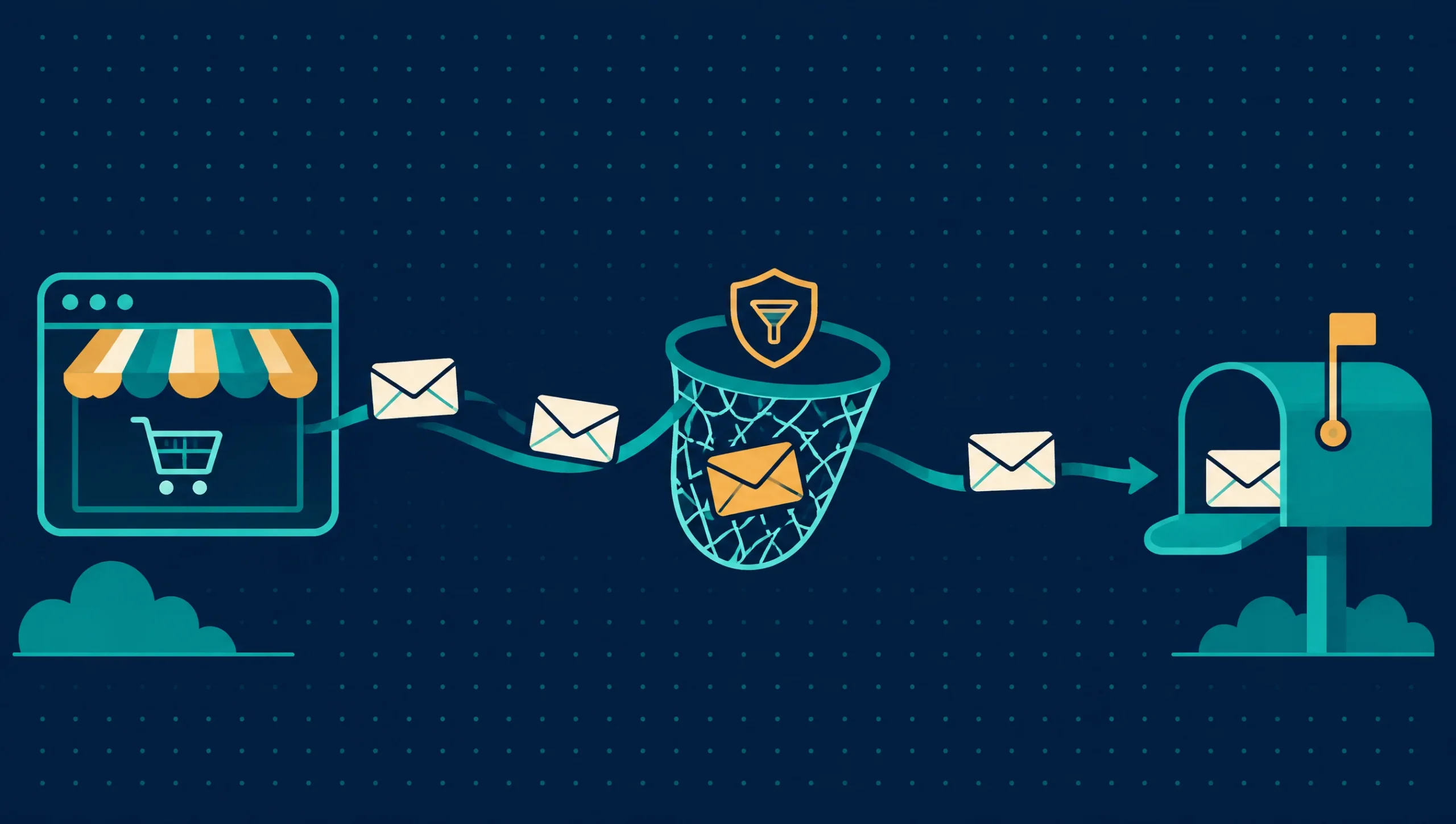
You usually learn about WooCommerce emails not sending from a customer who asks where their receipt is. Meanwhile the order sits in your dashboard, and nobody on your team knew to pack it.
The cause is rarely exotic. It lives in your settings, your server, your DNS records or another plugin, and checking them in that order beats guessing.
Why WooCommerce emails not sending happens
WordPress sends mail with a function called wp_mail. By default it hands each message to your web server and walks away. Nothing in that chain promises delivery.
Many hosts cap how many messages you can send per hour. Others block outgoing mail on purpose to stop spam. Because of this, a store can look perfectly healthy while mail quietly fails.
Spam filters add a second hurdle. Gmail, Outlook and Yahoo check whether a sender is who it claims to be. If your domain does not vouch for the server that sent the message, it lands in junk or disappears.
The order is placed, the status changes, and nobody is told. Silent filtering is behind a lot of these cases, far more than any bug in WooCommerce itself.
Check the simple things first
Start in your dashboard. Go to WooCommerce > Settings > Emails and open each email type. Every one has its own on and off switch, so confirm that it is enabled.
Next, check the recipients. New order emails go to the address in the Recipient(s) field. Sometimes that field still points at an employee who left last year, and the alerts have been landing in a dead mailbox ever since.
Then look at the order status, because each email fires on one specific change.
For example, the processing email goes out when payment clears, while the completed email waits until you mark the order complete. If your workflow skips a status, the matching email never fires.
Finally, review the sender details on the same screen. Run through this short list:
- Each email you expect is enabled.
- The recipient address is correct and still active.
- The From address uses your own domain, not a free mailbox.
- Your orders really reach the status that triggers each email.

Test what your store actually sends
Guessing wastes an afternoon. Place a test order instead.
Create a product priced at $0, or use a coupon that takes a cheap product to $0. Then check out as a customer, using an address you control. Watch your inbox and your spam folder.
An email log plugin makes this much easier. It records every message WordPress tries to send and whether the server accepted it.
If the log shows the message, WordPress did its job and the problem sits further down the line. If the log is empty, something blocked the email before it left your site.
That one test splits the problem in half, which saves hours when WooCommerce emails not sending has no obvious cause. It tells you whether to fix settings or fix delivery. A separate article on tracing WordPress form email delivery shows the same method for contact forms.
Move to SMTP or a transactional email service
Most fixes land here. Instead of letting your server send mail, you connect WordPress to a proper mail service through SMTP or an API.
Authenticated sending cures most cases of WooCommerce emails not sending. The service logs in with real credentials and sends from your domain, so receiving servers see a verified sender and trust the message more.
Transactional email services are built for receipts, password resets and order alerts. They also give you delivery reports, so when a message bounces you can see why.
You do not need a specific brand. Pick a reputable provider, follow its setup steps, press the test button in your mail plugin, and place another test order.
Check the provider’s sending limits before you commit. Some plans allow only a small number of messages per day, and a busy store can blow past that by lunchtime.
Free mailbox accounts work poorly here. Their daily limits are low, and providers may block the connection. A business mailbox or a transactional service is the safer choice.
Fix your domain’s email reputation
Even with SMTP, mail can land in spam if your domain lacks the right DNS records. Three records matter, and each does one simple job:
- SPF is a list of the servers allowed to send mail for your domain.
- DKIM adds a digital signature that shows the message was not changed on the way.
- DMARC tells receiving servers what to do when a message fails those checks.
Your mail service shows the exact records to add. You paste them into your domain’s DNS settings, usually at your registrar or host.
One trap: a domain should have only one SPF record, and two of them break the check. After you save changes, wait a few hours for DNS to update.
Then send a test message to a Gmail address and open the original message. Gmail shows whether SPF and DKIM passed. If either one fails, fix that before anything else.
Rule out plugin and theme conflicts
Sometimes another plugin gets in the way. A conflict is a classic reason for WooCommerce emails not sending right after an update.
Security plugins, a second mail plugin and custom code can all change or block outgoing mail. Email customizer plugins can also replace the WooCommerce templates and break them.
Test on a staging copy first. Deactivate everything except WooCommerce and your mail plugin, then place a test order. If the email arrives, turn plugins back on one at a time until it stops.
Try a default theme too. A theme that overrides email templates can throw an error that stops the message from being built.
Sometimes the fix is boring, like a second plugin that quietly added its own From address. Keep notes as you go, so you know which change fixed what. Never run this test on your live store during busy hours, because orders keep arriving while plugins are off.
For official details on email settings, see the WooCommerce documentation. If the emails are fine but orders themselves fail, the article on diagnosing WooCommerce order failures covers payments, webhooks and queues.
When missing emails are costing you orders
A customer with no receipt often assumes the order failed. They may buy again or ask for a refund, and some leave a bad review before you ever reply.
If WooCommerce emails not sending keeps coming back, treat it as a sign of a deeper fault. Your own team pays too, because without a new order alert, packing starts late and shipping dates slip.
A fixed-fee WooCommerce Technical Review finds these problems before they cost more orders. It checks email delivery, plugin conflicts and the other hidden faults behind a store that looks fine.
Frequently asked questions
What causes WooCommerce emails not sending after an update?
Updates often reset or replace something that email depends on. A new plugin may take over the From address, or a theme update can change the email templates.
A host change can also block outgoing mail. Run a test order and check your email log first to see where delivery stops.
Why do WooCommerce emails go to spam?
Spam filters distrust mail that fails sender checks. If your domain has no SPF or DKIM record for the sending server, providers cannot confirm who sent it.
Authenticated SMTP and correct DNS records fix most cases. Sending from a free mailbox address on your own site also hurts.
Do I need an SMTP plugin for WooCommerce?
In most cases, yes. The default mail function has no delivery guarantee, and many hosts limit it.
A mail plugin that connects to an authenticated service gives you reliable sending and delivery reports. Some hosts include a working mail setup, so test before you add anything.


