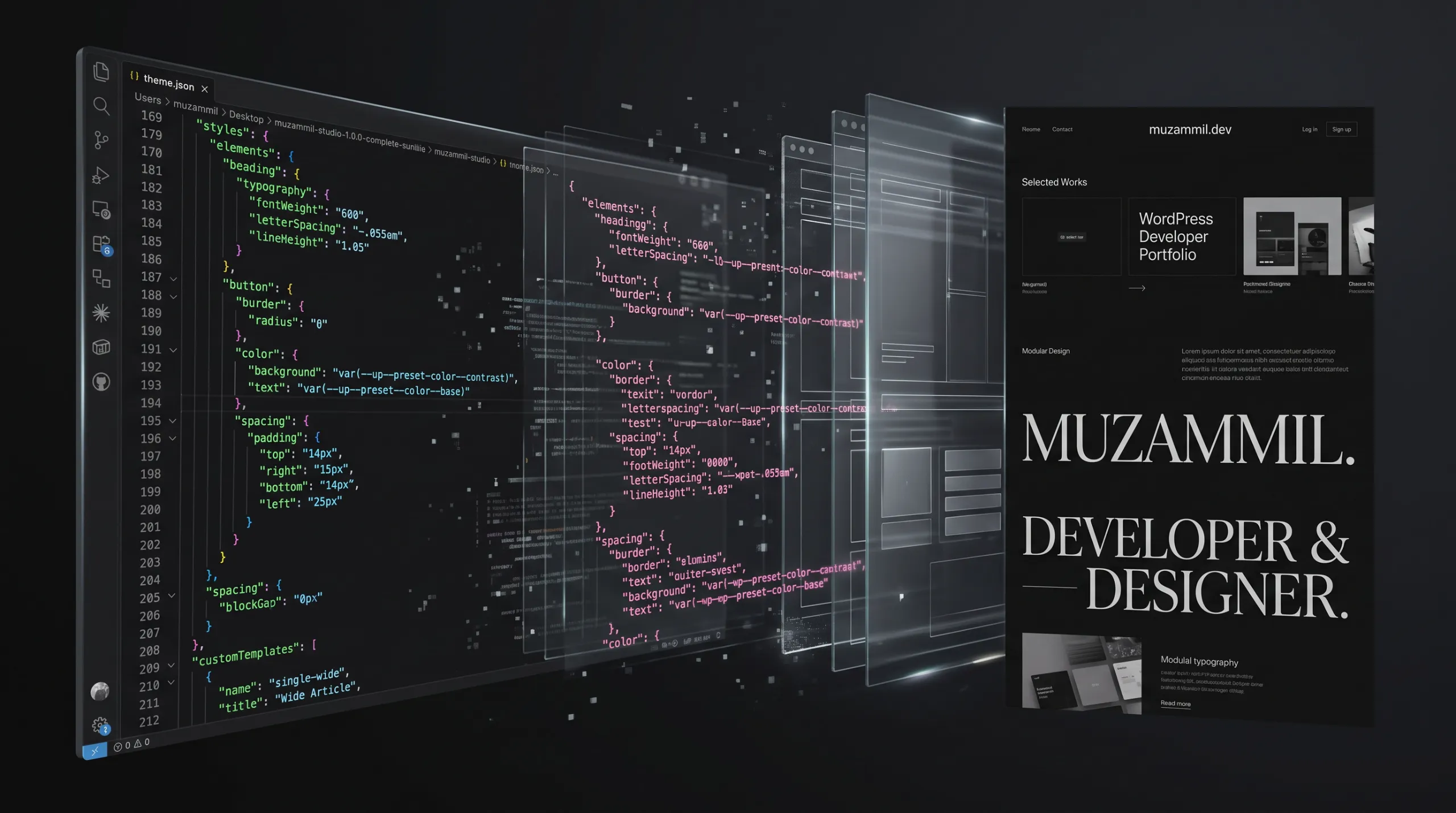
WordPress theme.json is where a block theme can turn a visual system into choices an editor understands. The file is small enough to look harmless. Yet a poorly planned change can alter headings, buttons and spacing across a site before anyone opens a page.
The goal is not to expose every design control. It is to make the sensible choices easy to find. An editor should be able to select a section gap or a text colour without remembering a hex code from a design presentation.
This walkthrough uses a deliberately small system: three colours, two content widths and three spacing values. The examples use theme.json version 3, which WordPress introduced in 6.6. They are configuration examples to merge into a development theme, not an instruction to replace a production file wholesale.
Begin with decisions, not a giant configuration file
Choose a page that represents the site’s real content. A service page with a long title, a screenshot, a short list and a call to action works well. Do not begin with a blank canvas containing one neat heading.
Record the visual decisions that recur. Perhaps most text uses a dark ink colour, backgrounds use a warm paper colour and buttons use one accent. Your layout may need a readable article width and a wider media width. These are useful tokens because they answer ordinary editing questions.
By contrast, a palette containing twelve almost-identical greys makes the editor harder to use. Every extra preset should have a purpose you can explain without opening a design tool.
Also agree on token names before writing code. A slug such as ink describes a role. A slug such as black-2026-new describes the history of one implementation. Role-based names are usually easier to preserve through future visual changes.
Define a small WordPress theme.json foundation
The theme.json specification separates settings from styles. Settings describe available tools and presets. Styles assign values to the design.
Here is an illustrative foundation. The schema URL targets the version you support; update that choice when your project’s compatibility policy changes.
{
  "$schema": "https://schemas.wp.org/wp/6.6/theme.json",
  "version": 3,
  "settings": {
    "color": {
      "defaultPalette": false,
      "palette": [
        { "slug": "ink", "name": "Ink", "color": "#17191C" },
        { "slug": "paper", "name": "Paper", "color": "#F5F2EA" },
        { "slug": "accent", "name": "Accent", "color": "#4656B8" }
      ]
    },
    "layout": { "contentSize": "44rem", "wideSize": "76rem" },
    "spacing": {
      "defaultSpacingSizes": false,
      "spacingSizes": [
        { "slug": "compact", "name": "Compact", "size": "1rem" },
        { "slug": "section", "name": "Section", "size": "3rem" },
        { "slug": "feature", "name": "Feature", "size": "6rem" }
      ]
    }
  },
  "styles": {
    "color": {
      "text": "var:preset|color|ink",
      "background": "var:preset|color|paper"
    },
    "typography": { "lineHeight": "1.6" }
  }
}
This example does not disable custom colours or spacing. Decide whether that restriction suits your editors before adding it. A team building unusual campaign pages may need more freedom than a team updating a fixed service catalogue.
Treat preset slugs as a compatibility contract
WordPress generates CSS custom properties from presets. For example, the accent colour becomes --wp--preset--color--accent. Blocks can also store references to a preset by its slug.
That makes renaming a slug different from changing its label. If content already references accent, replacing it with brand-blue can leave old content without the value you expect. Therefore, preserve working slugs where possible. Change the human-facing name or the value when the design needs to evolve.
On a disposable copy, search exported content and theme files for the old slug before removing it. Include patterns, templates and plugin styles. A design token is useful precisely because many places depend on it, so that dependency needs care during a redesign.
Write a short token register beside the theme: slug, purpose, acceptable uses and whether it is safe to remove. This takes less time than debugging a missing colour across fifty pages later.
Set widths according to reading tasks
The layout settings reference explains content and wide widths. A normal content width keeps text readable; a wide width gives images and tables more room.
The numbers in the example are starting points, not universal rules. Test them with the site’s actual font and article length. A wide sales section and a long technical paragraph should not automatically share the same measure.
Next, inspect the container that holds the content. If every outer Group imposes its own narrow width, changing the global wide value may appear to do nothing. Follow the nesting in List View and check which container constrains its children.
Avoid solving that confusion with a blanket width:100vw rule. Such a rule can introduce horizontal overflow and bypass the layout system you are trying to establish. Fix the responsible container instead.
Keep spacing names useful outside the design team
Editors tend to understand “Compact” and “Section” more quickly than a list of unexplained numbers. However, names only help if their use is consistent.
Define a few examples: Compact separates related items; Section separates major content areas; Feature gives a hero or case-study panel extra breathing room. Then build patterns that already use those values. Editors learn a system more readily from working sections than from a written spacing chart.
Check narrow screens before approving the scale. Six rem of padding might suit a desktop feature panel but consume too much of a mobile viewport. Use supported responsive or fluid options for your target WordPress version, or add a carefully scoped stylesheet where the design requires one.
The important test is whether the system produces useful pages at different widths. A mathematically tidy scale can still make a real page feel awkward.
Understand why your file may not win
WordPress theme.json participates in a hierarchy. The global settings and styles handbook places user configuration above theme and child-theme configuration.
Therefore, a colour saved in the Site Editor may continue to override the new file value. That is not necessarily a cache bug. It may be an intentional user setting stored in the database.
Before deleting anything, compare a clean installation with the existing site. If the clean site follows your file and the existing site does not, inspect saved global styles and template changes. Preserve an export before resetting overrides. Otherwise, a developer can accidentally remove client-approved work while trying to make the new theme appear consistent.
Also check individual blocks. A heading with an explicit custom colour has a different dependency from a heading that inherits the global text colour. The same visual result can come from different configuration layers.
Roll the system out with a content fixture
Create a test page that deliberately includes difficult content. Use a long heading, a short heading, a table, code, a list, a caption, buttons and a narrow image. Include both light and dark sections if the design uses them.
Then run a simple review cycle:
- Compare editor and frontend screenshots at the same content width.
- Change one token and inspect every affected component.
- Save a page, reopen it and confirm the preset selections remain intact.
- Test a page created before the token changes.
- Ask a content editor to build a section using only the supplied patterns.
Keep the fixture after launch. It becomes a quick visual regression page when the theme, WordPress or a block plugin changes. Make sure it is not accidentally presented as public marketing content.
Know when CSS is still the right tool
WordPress theme.json covers common settings and styles, but it is not a complete replacement for CSS. A complex decorative treatment or a plugin’s custom markup may still need a stylesheet.
Use that stylesheet for the missing behaviour rather than duplicating the entire design system. Reference the generated variables so the colour or spacing still follows the same source. For example, a custom card border can use the accent variable instead of another hard-coded blue.
If editor and frontend styling drift, investigate how the stylesheet is loaded. The WordPress asset-enqueueing guide distinguishes the editor interface from the content canvas. Loading styles into the wrong place can make a correct design look broken during editing.
A design system should reduce decisions
Ship the theme with a small set of useful presets, a few realistic patterns and a short explanation of ownership. Editors should know which changes are local and which affect the whole site.
For the wider permissions and publishing workflow, read the block-theme governance guide. If your current setup has competing global styles or a stack of one-off fixes, send me a representative page.
A successful WordPress theme.json setup is not the longest file. It is the one that helps people produce consistent pages without needing to understand every rule that makes them consistent.


