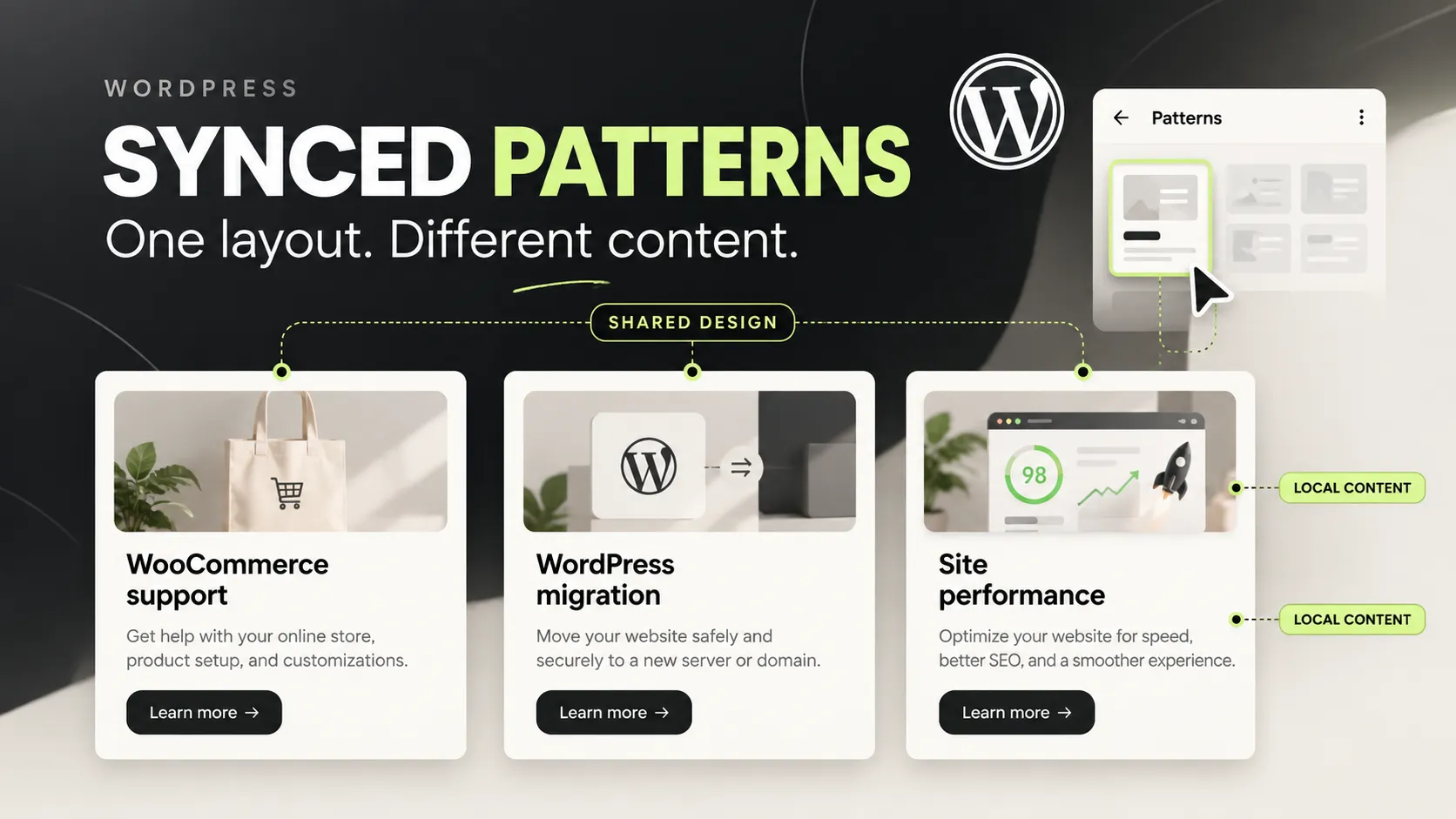
WordPress synced patterns solve one kind of duplication and can accidentally create another kind of surprise. You update a call to action on one page, then discover that the same wording changed across the website.
That behaviour is useful when every instance should stay identical. It is less useful when the layout should match but each service needs its own headline and button. Before you build a large pattern library, decide which parts belong to the shared design and which parts belong to the individual page.
This guide uses a service call to action as its example. The same reasoning applies to project cards, staff biographies and editorial notices. The aim is to let editors change useful content while keeping the shared structure understandable.
Choose the right kind of reuse
An unsynced pattern provides a starting layout. Once inserted, each copy can change independently. A synced pattern creates a shared source, so changes to that source can affect its instances.
Overrides add a more selective model. Supported content can vary in an instance while the broader pattern remains connected. WordPress introduced pattern overrides in 6.6; the official introduction explains the connection to content-only editing and bindings.
| Situation | A useful starting choice | Why |
|---|---|---|
| One identical legal notice everywhere | Synced pattern | There should be one maintained wording |
| A new section that designers will freely adapt | Unsynced pattern | Each page needs independent structure |
| Matching service panels with different copy | Synced pattern with suitable overrides | The design stays shared while content varies |
| The site’s global header | Template part | It belongs to the template structure |
The table describes ownership, not visual appearance. Two sections can look identical while having entirely different update behaviour.
Map the fields before building WordPress synced patterns
Write out the example panel as a small content model: eyebrow, heading, description, button label and destination. Next to each field, mark “shared” or “local”.
For example, the background colour and spacing can stay shared. The heading may vary between WooCommerce support and a WordPress migration service. The button destination may also differ, especially when each service has a different enquiry route.
Do not assume that changing a button label also changes its URL, or that every block attribute supports an override. Verify the controls on the WordPress version and block types your site actually uses. If the required value cannot vary safely, choose another pattern structure or an unsynced copy.
Then give the shared pattern a descriptive name. “Service enquiry panel” tells an editor more than “CTA final v3 copy”. Name the editable inner blocks too, using labels such as “Service heading” rather than layout terminology.
Build one instance before creating twenty
Create the panel on a staging page using ordinary blocks. Test its longest likely heading and a button label that wraps. Adjust the design before introducing shared behaviour.
Once the layout works, create the synced pattern and enable the available overrides for the intended content fields. Insert a second instance on another test page. Change the local heading there, then change a shared style at the source.
Your acceptance test is simple: the local heading should remain local, while the intended shared style should update. If the result differs, stop before using the pattern across the site. A two-page experiment is much cheaper to repair than a site-wide dependency.
Also test removing and reinserting an instance. An editor should understand whether it starts with default content, retains local values or needs a new selection. Document what you observe rather than relying on assumptions about reuse.
Content-only editing can protect structure
Content-only editing is useful when the author should edit text and media without redesigning the panel. It is a different concern from whether instances share data.
The following is a small illustrative pattern fragment. It locks the container’s structure while leaving supported content editing available. Try it in a disposable development page and inspect the resulting controls.
<!-- wp:group {"templateLock":"contentOnly","layout":{"type":"constrained"}} -->
<div class="wp-block-group">
  <!-- wp:heading -->
  <h2 class="wp-block-heading">Need help with a difficult WordPress build?</h2>
  <!-- /wp:heading -->
  <!-- wp:paragraph -->
  <p>Describe the workflow that needs to work better.</p>
  <!-- /wp:paragraph -->
</div>
<!-- /wp:group -->
This fragment does not create a synced pattern or configure per-instance overrides by itself. Those are separate steps. Keeping the distinction clear prevents a common handover problem: someone expects a locked layout to behave like a shared content record.
Also remember that editor locking is a workflow guardrail. It is not a security boundary for sensitive data or a replacement for role and capability design.
Explain the blast radius before a shared edit
When you edit the source of WordPress synced patterns, you are maintaining a dependency. Give that edit the same basic care you would give a shared navigation item.
First, list the places that use the pattern. Then identify any instance-specific values. Save a backup or revision, make the change on staging, and inspect representative pages. Include at least one page with long local content.
For a layout change, compare mobile and desktop. A shared width adjustment can look fine on the default instance while clipping a longer heading elsewhere. For a link change, check the actual destination as a logged-out visitor. The button’s visible label is not enough.
Finally, record the change in plain language. “Reduced panel padding on narrow screens” is more useful than “Updated pattern” when another developer investigates a regression later.
Detaching is a deliberate ownership change
Sometimes a page genuinely needs an independent version. An editor may be able to detach or convert an instance into ordinary blocks, depending on the available interface.
That can be the right choice. However, the independent copy will no longer receive the same shared updates. A detached campaign panel may keep an outdated message after the original pattern changes.
Therefore, do not detach sections just to get around an unclear editing interface. First ask whether an override or a better pattern boundary would solve the problem. If independence is intentional, record it in the page’s editorial notes or the team’s handover document.
Avoid naming the detached copy exactly like the shared pattern. An editor should be able to tell whether “Service enquiry panel” is a live shared dependency or a local section that only looks similar.
Keep the pattern library small enough to understand
A library of eighty near-identical panels does not necessarily make publishing faster. It can turn insertion into a guessing exercise.
Group patterns around real content tasks: service introductions, case-study summaries, proof sections and contact prompts. Remove obsolete drafts from the working library after preserving any required backups. Keep a separate record of retired patterns if existing pages still depend on them.
Then ask an editor to build a page without verbal help. Watch which names they search for and which sections they insert incorrectly. That exercise often reveals more than a long internal style guide.
WordPress synced patterns work best when the library reflects how people publish. The Site Editor documentation describes where patterns, templates and template parts fit within the editing interface. Use that structure to reduce ambiguity rather than creating a competing naming system.
A release checklist for WordPress synced patterns
Before rollout, confirm the expected behaviour on two separate pages. Check both shared design changes and local content changes. Then repeat the test with the role that will maintain the pages, because administrator access can hide permission problems.
After deployment, reopen the published pages and verify that the right version saved. Inspect the real frontend as well as the canvas. If caching is involved, verify the updated response after the normal purge process.
Keep the decision table with the handover. It should explain when to create a synced pattern, when to use an unsynced starting point and who can change the shared source.
For the wider editorial controls, see the block-theme governance article. If your team keeps copying sections because nobody trusts the shared library, show me one of those sections. The most useful fix may be a clearer ownership model rather than another block plugin.


