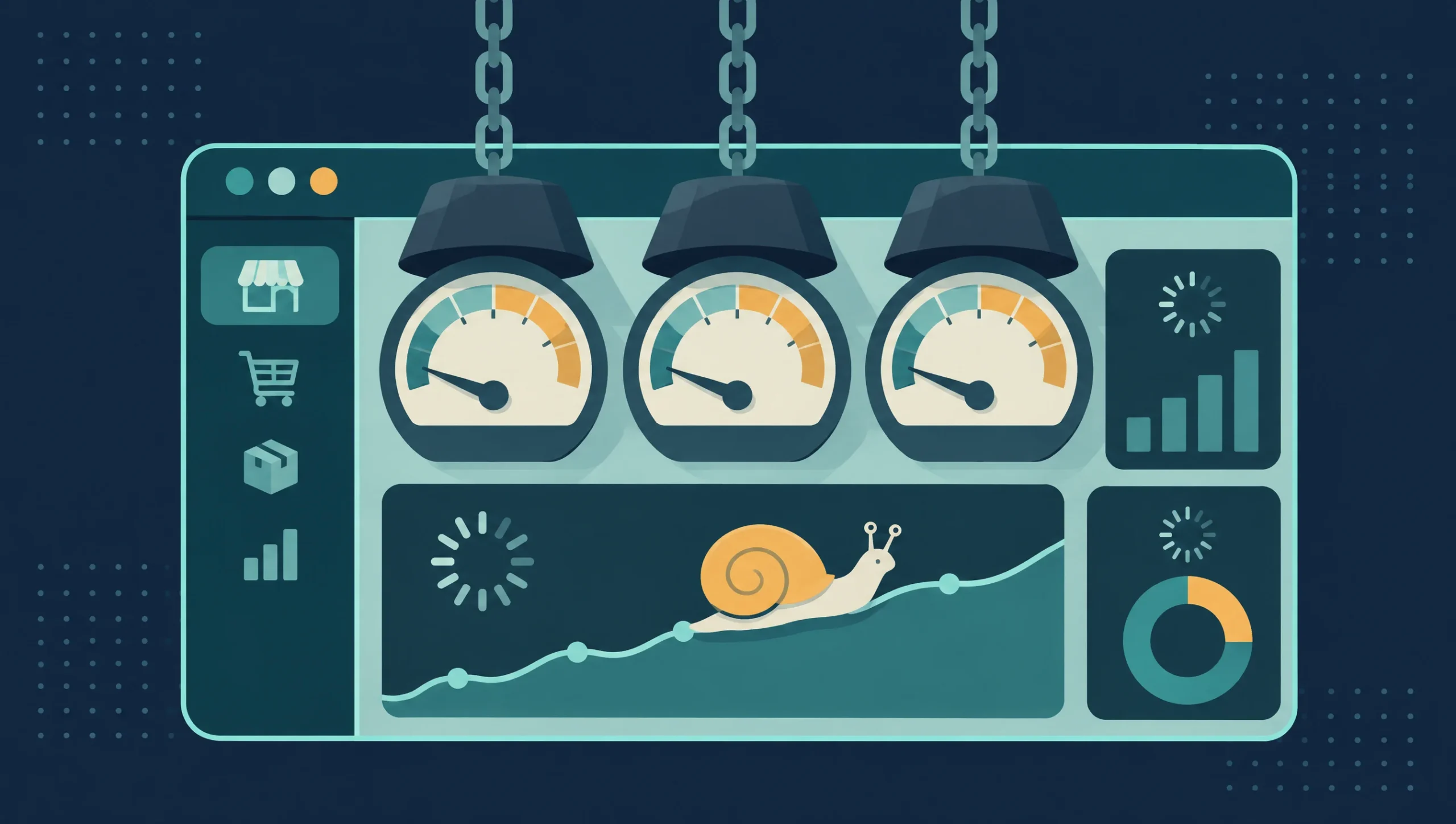
A WooCommerce admin slow complaint rarely comes from a customer. It comes from the packer who clicks an order, watches a spinner for ten seconds, and starts opening extra tabs out of boredom.
The storefront may feel fine while all of this happens. The causes sit in different places, and this guide covers them in the order they most often turn out to be the culprit.
A slow admin is not a slow storefront
Many owners assume one speed problem covers the whole site. They run a speed test on the home page, see a good score, and decide everything is fine. The storefront and the dashboard work very differently, though.
Frontend caching stores finished pages for visitors. It does nothing for wp-admin, because every dashboard page is built fresh for a logged-in user. So a site can score well in a speed test while your staff wait ten seconds for each screen.
This matters because the fixes differ. A WooCommerce admin slow problem needs its own diagnosis.
More cache will not help here. You need to look at the database, background jobs and server resources instead.
The usual suspects when your WooCommerce admin slow problem starts
Five causes show up again and again:
- Autoloaded options bloat. WordPress loads certain database settings on every request, and old plugins leave large amounts of data there.
- An Action Scheduler backlog. WooCommerce runs background tasks through a queue, and thousands of stuck tasks drag the dashboard down.
- Heavy analytics queries. Dashboard widgets and reports that sum up large order histories can take a long time on big stores.
- Plugins that phone home. Some plugins call outside servers on every admin page, so one slow license check delays the whole screen.
- An underpowered database. Cheap shared hosting struggles once you have many products and orders.
Most cases of WooCommerce admin slow behavior have two or three of these at once. That is why a single quick fix rarely solves it, and why the first plugin you blame is often innocent.

How to see what is actually slow
Measure before you touch anything. Three tools give you a clear picture.
The first is Query Monitor, a free plugin. It adds a panel to the admin bar that shows how long each page took. It also lists the slowest database queries and the plugin that ran them, so install it on staging if you can.
The second is your host’s metrics. Most hosts show CPU, memory and PHP worker usage. If workers hit their limit during busy hours, requests wait in line, and every screen feels slow.
The third is the slow query log. It records database queries that take longer than a set time. Your host or developer can turn it on for a short period.
Then you see exactly which queries cost the most. Turn it off afterward, because logging adds its own load.
The WordPress developer resources explain how options, queries and caching work if you want to go deeper. For a broader view, read about investigating WooCommerce performance before adding cache.
Fixes for a WooCommerce admin slow dashboard, in order of likelihood
Take a full backup before you change anything, and test each change on staging if you can. Then work down this list.
Change one thing at a time, so you can tell which fix helped. Time the same admin screen before and after each step with a phone stopwatch. It feels silly, but it settles arguments.
Clean up autoloaded options
Go to Tools > Site Health in your dashboard. Newer WordPress versions flag a large amount of autoloaded data there. A developer can then list the biggest options and remove the ones that belong to plugins you no longer use.
Process or clear stuck scheduled actions
Go to WooCommerce > Status > Scheduled Actions. Look at the Pending and Past-due tabs. A huge number of old pending items means the queue is stuck.
Run them, or delete completed and failed entries, and find out why they failed. Otherwise the backlog returns within days.
Limit dashboard widgets and heavy reports
Remove dashboard widgets you never read. Some plugins add widgets that call outside services each time the dashboard opens.
Also avoid opening large analytics date ranges during busy hours. Each report may scan years of orders.
Right-size your hosting and PHP workers
If metrics show workers at their limit, the plan is too small for your store. Move to a plan with more workers and memory, and ask your host how many requests it can run at once. Then retest the same screens at a busy hour.
Check your PHP version while you are there. PHP 8.2 reaches end of life on 31 December 2026, so plan the move to a newer version soon.
Add database indexes for big stores
Large stores sometimes need extra database indexes on busy tables, for example when the orders list or product search takes many seconds to open. This is developer work. It should rest on real slow query data, not on a hunch, and it needs a backup first.
For a full picture of storefront tuning, the WooCommerce speed optimization guide covers the visitor side.
When product edits take 30 seconds, staff costs pile up
Slow admin work looks small on any single day. It adds up, though. Here is a simple example with made-up numbers, so swap in your own.
Say a product edit takes 30 seconds to save instead of 3. Your team makes 100 edits a day. That is about 45 extra minutes of waiting each day, and it grows with every person who works in the dashboard.
Now add order processing, stock updates and refunds. A store with several staff, such as support agents, packers and a manager, feels the delay on every screen.
As a result, you pay wages for time spent watching a spinner. Over a month, a WooCommerce admin slow problem can eat days of paid time.
The cost shows up in mistakes too. Staff who wait on slow pages click twice, open extra tabs and make duplicate edits. A fast admin is a quiet saving that your team notices every day.
Get the admin fixed properly
If a WooCommerce admin slow problem is hurting your team, page-speed work is a good place to start. A WordPress page-speed optimization service measures the real bottlenecks and fixes them in order.
When the cause is unclear or spread across several areas, a fixed-fee WooCommerce Technical Review gives you a clear list of problems and priorities.
Frequently asked questions
Why is my WooCommerce admin slow but my storefront is fast?
Caching speeds up the storefront by serving saved pages. The dashboard cannot use that shortcut, so it depends on database speed, background jobs and server power.
A site can pass speed tests and still feel slow for staff. Measure the admin separately.
Is Action Scheduler slowing down my store?
It can. Thousands of pending or failed actions put load on the database and background workers.
Check WooCommerce > Status > Scheduled Actions. If you see a large backlog, process it and fix whatever made tasks fail, or it will pile up again.
Will a bigger hosting plan fix a slow dashboard?
Sometimes. If your host metrics show workers or memory at their limits, a larger plan helps.
Bloated options and stuck queues stay slow on any server, however. Measure first, clean up the data, and then decide whether you need more resources.


